Introduction: The Death of Desktop Editing?
For years, “professional video editing” meant sitting behind a powerful computer for 10 hours a day.
In 2026, the landscape has shifted.
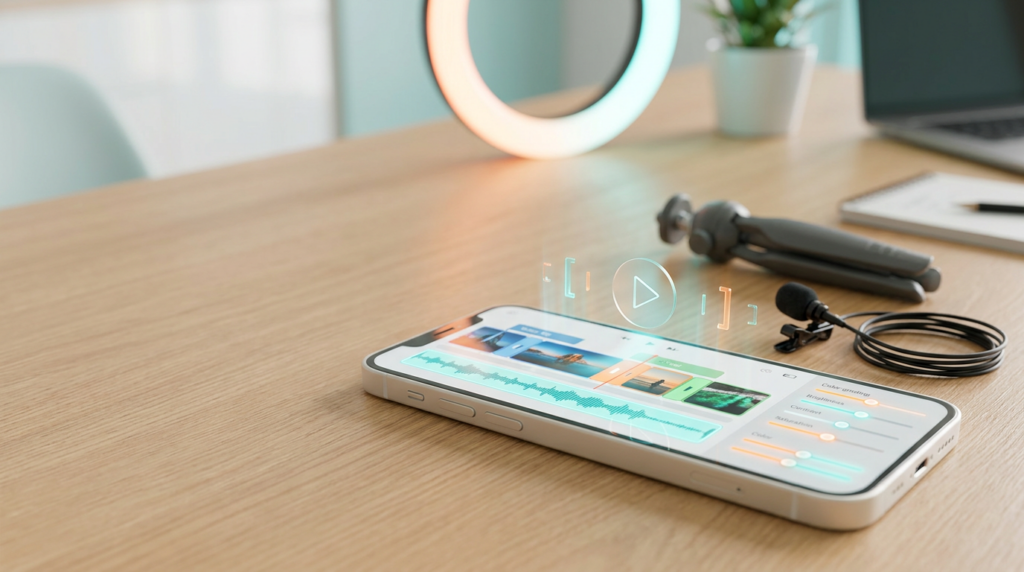
The smartphone in your pocket now has:
- More processing power than mid-range laptops of 2024
- 4K / 8K editing capabilities in real-time
- AI-driven features that automate hours of manual work
Today, some of the highest-paid content creators edit their entire channels—from TikToks to long-form YouTube documentaries—entirely on their smartphones.
Why?
👉 Speed. Efficiency. Portability.
This guide will teach you the professional workflow to edit videos on your phone that look like they were polished in a multi-million dollar studio.
Affiliate disclosure: This post contains affiliate links. If you make a purchase through one of these links, ProBusinessStrategy may earn a small commission at no extra cost to you. We only recommend tools we genuinely believe in.
Phase 1: Choosing Your Mobile Editing Software (The Top 3 of 2026)
Don’t waste time on 20 different apps. Pick one that fits your goals.
1. CapCut (The All-Rounder)
- Best for: TikTok, Reels, YouTube
- Highlights: Auto-captions, massive effect library, AI templates
2. VN Editor (The Professional)
- Best for: Advanced color grading and multi-layer editing
- Highlights: Precision “keyframe” controls, no watermarks, free to use
3. LumaFusion (The Industry Standard)
- Best for: Long-form documentaries and professional work
- Highlights: Most powerful interface, multi-track editing, requires a one-time fee
🔗 Internal Link
If you’re using videos for your mobile business:
Phase 2: The Professional Mobile Workflow (Step-by-Step)
Editing is not just slapping clips together. It’s a process.
Step 1: Pre-Edit Organization
👉 Before you open your app, clean your gallery. Put all clips into a single folder.
Step 2: The Rough Cut (Assembling)
- Drag your clips into the timeline.
- Arrange them to tell a story or deliver a message.
- Internal Link: If you’re telling a story about your startup journey, check our Blueprint Phase 2.
Step 3: Trim the Fat (Jump Cuts)
Remove every:
- Long breath
- Silence
- “Uhm” or hesitation
👉 In 2026, high retention comes from fast pacing.
Phase 3: Advanced Mobile Editing Techniques
To move from “amateur” to “pro,” you need to master these 3 things:
1. Keyframing (The Secret to Motion)
Keyframes allow you to animate elements.
- Zoom into your face for emphasis.
- Slide text in from the side.
- Create smooth transitions.
2. Color Grading
Raw phone footage can look “flat.”
- Increase Contrast (+10)
- Brighten Exposure if it’s dark
- Adjust Saturation for “pop.”
3. B-Roll Integration
Don’t just show a “talking head.”
- Overlay images
- Show screen recordings
- Use royalty-free b-roll (from apps like Pexels or Canva)
🔗 Internal Link
Need high-quality visuals for your videos?
Phase 4: Audio Engineering on Your Phone
Audio is 50% of the video experience.
1. Removing Background Noise
Apps like CapCut and Dolby On have powerful AI noise reduction features. One tap cleans your voice.
2. Background Music (The Mood Setter)
- Keep background music at -20db to -25db if you are speaking.
- Pro Tip: Use Epidemic Sound for copyright-free music that keeps your channel safe.
3. Sound Effects (Sound Design)
Subtle sound effects (whoosh, click, pop) make a video feel “high budget.”
Phase 5: The Power of AI in Mobile Editing
In 2026, AI is your assistant editor.
1. Auto Captions
Manual typing is dead. Use auto-caption features (CapCut/Submagic) and then edit the style to match your brand.
2. AI Body Effects
Subtly enhance lighting or backgrounds with AI to fix bad shooting conditions.
3. Smart Cutouts
Remove backgrounds without a green screen to create “talking head” stickers or floating effects.
🔗 Internal Link
Planning to build a YouTube channel?
Phase 6: Exporting & Distribution
Don’t ruin your hard work at the last second.
The Professional Export Settings (2026)
- Resolution: 1080p (for Social) or 4K (for YouTube)
- Frame Rate: 30fps or 60fps (if shooting action)
- Bitrate: “High” or keep it at “Auto”
Smart Upload Strategy
Export your video, then check:
- Is the first 3 seconds a hook?
- Does it look good on a small phone screen?
🔗 Internal Link
Manage your distribution with:
Phase 7: Monetizing Your Video Editing Skills
Once you master your phone, you have a high-income skill.
- Edit for other creators: Offer your services on Fiverr/Upwork (from your phone!).
- Sell templates: Create VN or CapCut templates.
- Affiliate Marketing: Recommend your favorite editing apps.
🔗 Internal Link
👉 How to Start Affiliate Marketing from Your Smartphone
Conclusion: Practice > Gear
The best video editor isn’t the one with the most expensive computer. It’s the one who knows how to tell a story and keep people watching.
With the apps available in 2026, you hold a mini Hollywood studio in your hand. Use it.
Your Action Step Today
- Film 3 random clips.
- Open CapCut or VN.
- Cut them together into a 30-second video with background music.
- Export and watch it.
Related Articles